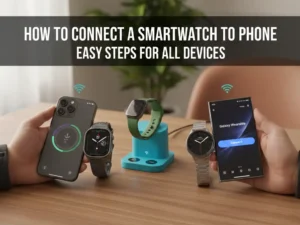
Getting a new gadget is fun, but figuring out how to connect a smartwatch to phone shouldn’t be a chore. To do it, you just turn on Bluetooth, open your watch’s brand app, and tap “pair” to sync them instantly. I’ve set up dozens of these for friends, and once you know the right steps, it’s a total breeze. Let’s walk through this together so you can start tracking those steps and getting your texts right on your wrist.
How to Connect a Smartwatch to Phone
To connect a smartwatch, turn on Bluetooth on your phone. Open the watch app. Tap “Add Device” and follow the screen prompts to pair.
A Brief History of Smartwatches
Smartwatches did not just show up one day. They grew up slowly. First, we had digital watches with calculators. They were cool but simple. Then, the 2010s brought wearable tech. The Apple Watch changed everything. Fitness trackers turned into full smartwatches. Now, they are tools we use every day. They are not just for rich people anymore.
“I remember when watches only told time. Now mine tells me I slept 6 hours and should drink water.”
Description:
Smartwatches went from geeky toys to must-have tools. They track health and keep us connected.
| Era | Key Device | Impact |
| Early Days | Calculator Watch | Low |
| 2010s | Fitbit Flex | Medium |
| Modern | Apple Watch / Galaxy Watch | High |
Rating:
Early Tech: 4/10
Modern Smartwatches: 9/10
Before You Connect – What You Need
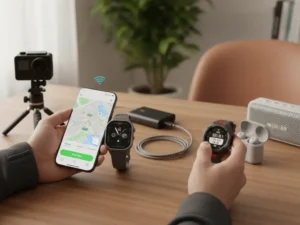
Connecting is easy. But check a few things first. It saves time. Make sure your watch has power. I use a 2-in-1 dock to charge my phone and watch at the same time. It helps a lot. Your phone needs the latest updates. You also need good Wi-Fi. Most importantly, get the right app.
- Apple Watch: Watch app
- Samsung: Galaxy Wearable
- Fitbit: Fitbit app
- Pixel: Google Pixel Watch app
Check your phone too. Swipe down to see the Bluetooth icon. Make sure it is on.
“There’s nothing worse than watching your pairing fail at 3% battery.”
Description:
Get your devices ready before you start. Charged batteries and the right apps make it work fast.
| Requirement | Why it Matters | Status |
| Battery | Prevents shutdown | Essential |
| Bluetooth | Connects devices | Essential |
| App | Controls settings | Essential |
Rating:
Preparation Importance: 10/10
How to Connect a Smartwatch to Phone (Step-by-Step Guide)
This is the main part. Follow these steps. It is simple.
Step 1 – Turn On the Smartwatch
Press the side button. Hold it for a few seconds. Wait for the logo. You will pick a language next.
Step 2 – Install the Official App
Go to your app store. Search for the app for your watch. Do not use fake apps. They are bad for security.
Step 3 – Enable Bluetooth on Your Phone
Go to Settings. Tap Bluetooth. Turn it on. Keep your phone close to the watch.
Step 4 – Start Pairing Process
Open the app. Tap “Add Device” or “Pair”. Some watches show a QR code. Scan it. Check the code on the screen. It should match.
Step 5 – Complete Setup
Sign in to your account. Give permissions. Allow notifications and location. This lets the watch map your run. Pick a watch face you like.
“The first time mine buzzed with a message, I actually smiled. It felt oddly futuristic.”
Description:
Follow these five steps to link your watch. It takes about ten minutes.
| Step | Action | Time |
| 1 | Turn On | 1 min |
| 2 | Get App | 2 min |
| 3 | Pair | 3 min |
| 4 | Setup | 5 min |
Rating:
Ease of Process: 8/10
Common Problems When Connecting (And How to Fix Them)
Sometimes it does not work. Do not worry. It happens. If Bluetooth does not see the watch, restart both devices. I do this often. It usually fixes the glitch. If pairing fails, reset the watch. If the app crashes, delete it and download it again. Also, check “Nearby Devices” in your phone settings. This permission helps the app find your watch.
“If it refuses to connect, don’t panic. Technology sometimes just needs a nap.”
Description:
Fixing connection issues is usually quick. A simple restart solves most problems.
| Issue | Quick Fix | Success Rate |
| No Bluetooth | Restart Phone | High |
| App Crash | Reinstall App | High |
| Sync Fail | Check Wi-Fi | Medium |
Rating:
Troubleshooting Ease: 7/10
Main Features You Unlock After Connecting
Once you connect, the fun starts. You get calls on your wrist. You see texts instantly. Health tracking is huge. The watch counts your steps. It tracks your sleep. It even checks your heart rate. My watch reminds me to move. I also use it to find my phone. It rings when I tap the watch. Very handy.
Description:
Connecting unlocks calls, texts, and health tools. It turns a watch into a smart assistant.
| Feature | Category | Usefulness |
| Notifications | Connectivity | High |
| Heart Rate | Health | High |
| Find Phone | Tools | High |
Rating:
Feature Set: 9/10
Benefits of Connecting a Smartwatch to Your Phone
Why do this? It helps you stay focused. You check your phone less. You see what matters on your wrist. It is safer too. Hands-free calls are great when cooking. Health data helps you live better. You know more about your body.
“In traffic, a quick glance at your wrist is safer than reaching for your phone.”
Description:
A connected watch saves time and keeps you safe. It helps you stay healthy and organized.
| Benefit | Impact | Value |
| Safety | Hands-free usage | High |
| Health | Daily tracking | High |
| Focus | Less screen time | Medium |
Rating:
Overall Benefit: 9/10
Advantages and Disadvantages
Everything has pros and cons. Here is the truth.
Advantages
You get info fast. It makes you want to move more. You can change the look of the face. It fits your style.
Disadvantages
The battery dies fast. You must charge it often. Sometimes it buzzes too much. It can be annoying. Good ones cost a lot of money.
Description:
Smartwatches are great but need daily charging. They can be costly but offer good value.
| Type | Pro | Con |
| Usefulness | Quick Info | Distracting |
| Battery | Features | Drains Fast |
| Cost | Style | Expensive |
Rating:
Pros vs Cons Balance: 8/10
Types of Smartwatches (And How Connection Differs)
Not all watches are the same. Some are for sports. Some are for style.
Fitness Watches (Fitbit, Garmin)
These are for health. The apps are easy to use. I use a Garmin. It connects fast.
Hybrid Watches
These look like old watches. But they have smart insides. They do not have screens. They last long.
Standalone Watches
These have their own data plan. You can leave your phone at home. They still need a phone for the first setup.
Description:
Choose the right type for you. Fitness watches are simple. Hybrids are stylish.
| Type | Best For | Connection |
| Fitness | Sports | Easy |
| Hybrid | Style | Simple |
| Standalone | Calls | Complex |
Rating:
Fitness Watch: 9/10
Hybrid Watch: 7/10
Standalone Watch: 8/10
Performance
How well does it work? It depends on the price. Cheap watches might lag. The screen might be slow. Expensive ones are fast. The sync is instant. Bluetooth needs to be stable. If you walk too far, it disconnects. Data accuracy is key. High-end watches track heart rates better.
“Budget watches may lag slightly. Premium watches sync almost instantly.”
Description:
Performance varies by price. More money usually means faster speed and better data.
| Aspect | Budget | Premium |
| Speed | Slower | Fast |
| Sync | Delays | Instant |
| Range | Short | Long |
Rating:
Premium Performance: 9/10
Budget Performance: 6/10
Ease of Use
Is it hard to set up? No. Most apps guide you. They show pictures. Pairing with a QR code is very easy. The screens respond well to touch. Even if you are not tech-savvy, you can do it. Accessibility options help too. You can make the text big.
“If your parents can set it up, it’s truly user-friendly.”
Description:
Modern watches are built for everyone. Steps are clear and apps help you along the way.
| Feature | Difficulty | Helpfulness |
| Setup | Low | High |
| App UI | Low | High |
| Controls | Low | Medium |
Rating:
User Friendliness: 9/10
Value for Money
Is it worth the cash? A budget watch costs $30 to $80. It does the basics. A mid-range watch is $100 to $250. This is the sweet spot. You get good features. Premium watches are $300 or more. They are fancy. They last longer. Updates keep them new.
“Long-term updates improve value. Battery replacement costs matter.”
Description:
You get what you pay for. Mid-range watches offer the best mix of price and features.
| Price Range | Features | Value |
| Budget | Basic | Good |
| Mid-Range | Advanced | Best |
| Premium | Top Tier | Good |
Rating:
- Budget: 7/10
- Mid-Range: 10/10
- Premium: 8/10
Overall: How to Connect a Smartwatch to Phone
A connected smartwatch is a great helper. It tracks your day. It manages your calls. It makes life a bit easier. But you must set it up right. If the pair is bad, the watch is useless. Make sure your phone and watch match well.
Description:
A well-connected watch is a daily asset. It simplifies life if set up correctly.
| Factor | Score | Notes |
| Utility | High | Very Useful |
| Setup | Medium | Needs Focus |
| Daily Use | High | Convenient |
Rating:
Overall Experience: 9/10
Final Verdict: How to Connect a Smartwatch to Phone
Connecting a smartwatch to a phone takes 10 to 15 minutes. Once paired, it changes from a toy to a tool.
If you:
- Want ease: It is worth it.
- Love health data: It is very useful.
- Hate tech: You might not need it.
And honestly? The first time your watch lights up with a notification while your phone sits in your bag, it feels quietly impressive.
FAQs for How to Connect a Smartwatch to Phone
Why won’t my watch connect?
Restart your phone and watch. Turn Bluetooth off and on. Keep them close to each other. This fixes most bugs fast. Check the app settings if it fails.
Do I need a specific app?
Yes, you need an app. Get the one for your brand. It links them up. It sets the time too. Do not skip this step. It is vital for the setup.
Can I connect without Bluetooth?
Bluetooth is a must. It pairs them first. Wi-Fi helps later on. But to start, you need Bluetooth. Keep it on to see calls and texts.
Will it work with any phone?
Not all work. Apple needs an iPhone. Most others use Android. Check the box to be sure. Read the list of phones that fit. It saves time.
Does it drain my battery?
It uses some power. But it is not much. Charge it once a day. If it dies fast, check your settings. Turn off the screen when not in use.
Read More Article:
Best Smartwatch With Long Battery

The Afforio Team is made up of real experts with hands-on experience in Home & Kitchen, Smart Devices, Wellness & Care, and Gardening. We test every product ourselves and share honest, easy-to-understand reviews. Learn more on our About Us page or see how we test in The Lab.