How to Set Smart Watch Time (Easy Guide + Real-Life Tips)
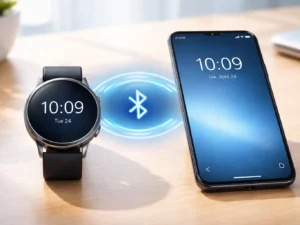
If you want to know How to Set Smart Watch Time, here is the easy answer. Most watches set the time by themselves. Just connect your watch to your phone. I have used many watches, and this works almost every time. If it does not work, you can set the time by hand.
Device Type Identification Before Setting Time
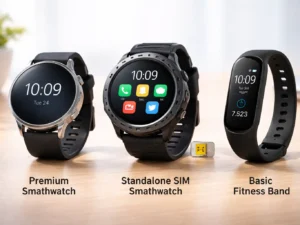
First, know your watch type. This step is very important. Each type sets time in a different way. I learned this the hard way with a cheap band.
Know your smartwatch type first. It helps you choose the right way to set the time.
| Device Type | How It Sets Time | Ease |
|---|---|---|
| Phone-connected watch | Uses phone time | Very easy |
| Standalone watch | Uses SIM or Wi-Fi | Easy |
| Fitness band | Manual or limited sync | Medium |
Summary:
Most watches use your phone. Some use the internet. Cheap bands may need manual setup.
Ratings:
Phone-connected watch: 9/10
Standalone watch: 8/10
Fitness band: 6/10
Default Time Sync Behavior in Smart Devices
Most smartwatches set the time on their own. You do not need to do much. I like this because it saves time.
Smartwatches auto-sync time using your phone or the internet.
| Feature | How It Works | Reliability |
|---|---|---|
| Auto sync | Uses phone clock | High |
| Time zone | Uses GPS/phone | High |
| Sync fail | App or Bluetooth issue | Medium |
Summary:
If your phone time is right, your watch will be right too. Problems come from a bad connection.
Ratings:
Auto sync: 9/10
Timezone: 8/10
Fail cases: 6/10
Step-by-Step: Automatic Time Setup (Primary Method)
This is the best way. It is fast and simple. I use this method all the time.
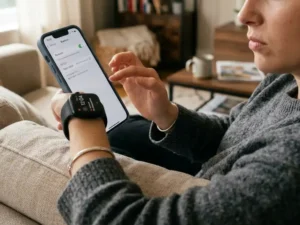
Pair your watch with your phone. Time will sync in seconds.
Bluetooth Pairing Process
- Turn on Bluetooth
- Open the Watch app
- Pair the watch
App-Based Sync
- Allow all needed access
- The app syncs time in the background
Real Use Timing
- Takes 5 to 30 seconds
- “Delay” means “weak signal.”
| Step | Action | Time |
|---|---|---|
| Pair | Connect to the phone | 1–2 min |
| Sync | Auto update | Seconds |
| Check | Look at the time. | Instant |
Summary:
It is very fast. If slow, check Bluetooth.
Ratings:
Ease: 10/10
Speed: 9/10
Reliability: 8/10
Manual Time Setting (When Auto Sync Is Not Available)
Sometimes auto-sync fails. I have seen this on low-cost devices.
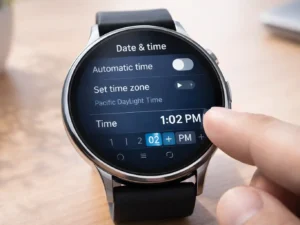
Turn off auto time. Set the time manually in settings.
Steps
- Open Settings
- Tap Date & Time
- Turn off auto time
- Set time and zone
- Save and check
| Step | Action | Level |
|---|---|---|
| Open | Go to settings | Easy |
| Off auto | Disable sync | Easy |
| Set | Adjust time | Medium |
Summary:
Manual setup works but takes more time.
Ratings:
Control: 9/10
Ease: 6/10
Accuracy: 7/10
App Interface and Ecosystem Dependence
The app matters a lot. A good app makes things easy. A bad app causes stress.
| Factor | Impact | Level |
|---|---|---|
| App | Controls sync | High |
| Android/iOS | Some limits | Medium |
| Cloud | Helps sync | Medium |
Summary:
Good apps give a smooth experience. Bad apps cause bugs.
Ratings:
App quality: 8/10
Support: 7/10
Ease: 7/10

Connectivity Factors That Affect Time Accuracy
Connection is key. A weak signal means the wrong time.
Strong Bluetooth and internet keep time correct.
| Factor | Effect | Risk |
|---|---|---|
| Bluetooth | Sync works | High |
| Internet | Updates zone | Medium |
| SIM | Works alone | Low |
Summary:
Good signal = correct time. Bad signal = errors.
Ratings:
Bluetooth: 9/10
Internet: 7/10
SIM: 8/10
Common Setup Failures and Real-World Fixes
I faced these issues many times. Fixes are easy.
Restart and reconnect to fix most issues.
| Problem | Cause | Fix |
|---|---|---|
| No sync | App issue | Reconnect |
| Wrong zone | GPS error | Set manual |
| Reset time | Bug | Update |
Summary:
Most problems fix fast. Restart works best.
Ratings:
Fix ease: 9/10
Issues: 6/10
After fix: 8/10
Performance Under Different Usage Conditions
Use affects time accuracy.
| Case | Result | Level |
|---|---|---|
| Travel | Auto update | Good |
| Offline | No update | Medium |
| Low battery | Drift | Low |
Summary:
Travel is smooth. Offline can cause small errors.
Ratings:
Travel: 9/10
Offline: 6/10
Battery: 7/10
Software Layer Influence (Firmware & Updates)
Updates matter a lot. I always keep my watch updated.
| Factor | Effect | Level |
|---|---|---|
| Updates | Fix bugs | High |
| Versions | May break | Medium |
| Support | Long use | High |
Summary:
Updates improve time sync over time.
Ratings:
Updates: 9/10
Stability: 7/10
Support: 8/10
Data Privacy and Time Sync Mechanisms
Time sync may use your location.
| Factor | Risk | Level |
|---|---|---|
| Server | Low | High |
| Location | Medium | Needed |
| Cloud | Medium | Helpful |
Summary:
It is safe. Location helps accuracy.
Ratings:
Safety: 8/10
Trust: 7/10
Control: 6/10
Compatibility Friction Across Devices
Not all devices work well together.
| Factor | Issue | Level |
|---|---|---|
| Android/iPhone | Limits | Medium |
| Brand lock | High limits | High |
| Cross use | Bugs | Medium |
Summary:
The same brand works best.
Ratings:
Fit: 7/10
Flex: 6/10
Stability: 7/10
Ownership Friction and User Experience Gaps
Cheap devices can be hard to use.
| Issue | Effect | Level |
|---|---|---|
| Menus | Hard to use | High |
| Controls | Limited | Medium |
| App | Needed | High |
Summary:
Budget devices need more effort.
Ratings:
Ease: 6/10
Learn: 5/10
Use: 6/10
Real-World Usage Scenarios
Daily use shows real results.
| Case | Result | Level |
|---|---|---|
| Daily | Smooth | High |
| Gym | Limited | Medium |
| Multi-use | Mixed | Medium |
Summary:
Daily use is smooth. Issues show in special cases.
Ratings:
- Daily: 9/10
- Gym: 6/10
- Multi: 6/10
Expectation vs Reality in Time Accuracy
Real life is close, but not perfect.
| Claim | Truth | Level |
|---|---|---|
| Perfect | Small delay | High |
| No drift | Small drift | Medium |
| Instant | Few seconds | High |
Summary:
Time is very good, but not perfect.
Ratings:
- Accuracy: 8/10
- Consistency: 7/10
- Trust: 8/10
Key Decision Factors for Reliable Time Setting
Pick the right watch.
Choose a strong sync, a good app, and a stable connection.
| Factor | Need | Impact |
|---|---|---|
| Auto sync | Must | High |
| App | Very key | High |
| Connection | Needed | High |
Summary:
A good app and a strong link matter most.
Ratings:
Need: 10/10
Impact: 9/10
Ease: 8/10
Long-Term Reliability and Maintenance Considerations
Think long term.
| Factor | Effect | Risk |
|---|---|---|
| Updates | Better sync | Low |
| Clock | Drift | Medium |
| App | May stop | High |
Summary:
Pick brands with long support.
Ratings:
Life: 8/10
Care: 7/10
Trust: 8/10
Alternative Workflows if Time Issues Persist
If nothing works, try this:
- Reset the watch
- Install the app again
- Try other sync tools
Quick Answer: Reset and reconnect your watch to fix time issues.
Final Thoughts
Setting time is easy. Just connect your phone. That is all in most cases. I always use autosync because it works best.
Simple tip: Auto-sync saves time and avoids stress.
FAQs for How to Set Smart Watch Time
What is the easiest way to set the smartwatch time?
The easiest way to set smart watch time is by connecting it to your phone via Bluetooth. The watch will auto-sync using your phone’s clock and timezone within seconds.
How to set the smartwatch time manually?
To set smart watch time manually, go to Settings → Date & Time, turn off auto-sync, then adjust time and timezone. Save settings and check if the time stays correct.
Could you please explain why my smartwatch time is not syncing?
Smart watch time may not sync due to weak Bluetooth, app errors, or wrong phone settings. Restart both devices and reconnect to fix most syncing issues quickly.
Does the smartwatch time change automatically with timezone?
Yes, most smartwatches update time automatically when you travel. They use your phone or GPS to detect timezone changes and adjust time without manual input.
How long does it take to set the smartwatch time?
Setting smartwatch time usually takes a few seconds after pairing. If manual setup is used, it may take a minute depending on your watch interface and controls.
Read more articles:
How to Restart Samsung Galaxy Smart Watch Ultra

The Afforio Team is made up of real experts with hands-on experience in Home & Kitchen, Smart Devices, Wellness & Care, and Gardening. We test every product ourselves and share honest, easy-to-understand reviews. Learn more on our About Us page or see how we test in The Lab.