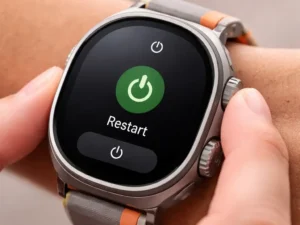
If your watch feels slow or stuck, a quick restart can fix it fast. To learn How to Restart Samsung Galaxy Smart Watch Ultra, just hold both side buttons, then tap Restart when the menu shows. I do this often when my watch lags, and it almost always works right away.
From my use with the Samsung Galaxy Watch Ultra, this simple step is the easiest way to keep it smooth—so try it first before anything else.
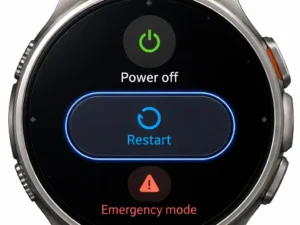
How to Restart Samsung Galaxy Smart Watch Ultra
Restarting your Samsung Galaxy Watch Ultra is quick and often fixes small issues fast. I use it like a “fresh breath” for the watch. It clears tiny bugs and brings things back to normal.
Device Context & Restart Triggers
Restart when your watch feels slow, stuck, or loses connection. It’s a safe first fix.
A restart is not always needed, but it helps with many small issues. I restart mine when apps lag or notifications stop. It is quick and safe, and it does not erase data.
| Situation | Restart Needed? | Why |
|---|---|---|
| Minor lag | Yes | Clears memory |
| App crash loop | Yes | Resets app state |
| Battery drain | Maybe | Stops rogue apps |
| Normal use | No | Not required |
Summary: Restart when things feel off, not daily.
Rating: 9/10
Restart Methods Breakdown (Core Section)
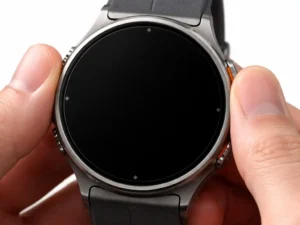
Hold both buttons for a restart or use the power menu. Force restart if frozen.
There are three easy ways to restart. I switch between them based on what feels faster. If the watch freezes, the force method always works.
| Method | Steps | Use Case |
|---|---|---|
| Button restart | Hold both buttons → Restart | Normal use |
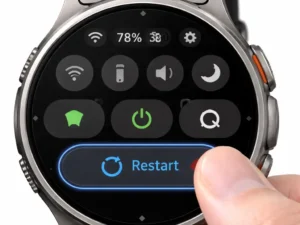
| Quick panel | Swipe down → Power → Restart | Easy access |
| Force restart | Hold 10–15 sec | Frozen screen |
Summary: Use force restart only when needed.
Rating: 9.5/10
Button Layout & Interaction Logic
The buttons are simple once you learn them. I got confused at first, but now it feels natural. Each button has a clear job.
| Button | Action | Function |
|---|---|---|
| Home/Power | Long press | Power menu |
| Back | Short press | Go back |
| Both buttons | Hold | Restart |
| Mistake | Tap only one | No restart |
Summary: Use both buttons together for a restart.
Rating: 9/10
Smart Device Behavior During Restart
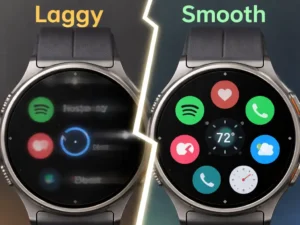
A restart clears running apps and resets connections. I notice apps feel smoother after. It does not delete your data.
| Area | What Happens |
|---|---|
| Apps | Close and reload |
| Bluetooth/Wi-Fi | Disconnect then reconnect |
| Sync | Pauses then resumes |
| Data | Safe and intact |
Summary: Restart refreshes the system safely.
Rating: 9/10
Connectivity & Ecosystem Reinitialization
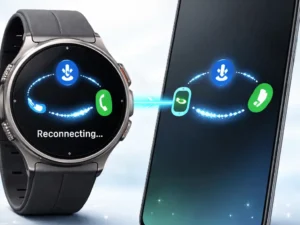
After a restart, the watch reconnects to your phone. I see a short delay, but it fixes most sync issues. Samsung apps also reload cleanly.
| Feature | Behavior |
|---|---|
| Phone pairing | Auto reconnect |
| Samsung Health | Sync resumes |
| Notifications | May need a few seconds |
| Calls | Work after reconnect |
Summary: Wait a few seconds after reboot for full sync.
Rating: 8.5/10
Software & Firmware Considerations
Updates often trigger restarts. I always let it finish fully. This keeps the system stable over time.
| Factor | Impact |
|---|---|
| OTA updates | Require restart |
| System optimization | Happens after reboot |
| Stability | Improves with updates |
| Long-term use | More stable |
Summary: Restart supports updates and smooth use.
Rating: 9/10
Common Restart Issues & Friction Points
Sometimes things do not go as planned. I have seen delays or no response before. Most issues have simple fixes.
| Issue | Fix |
|---|---|
| No response | Hold buttons longer |
| Stuck on logo | Wait or charge |
| Crash loop | Update apps |
| Low battery | Charge first |
Summary: Most restart issues are easy to fix.
Rating: 8/10
Real-World Usage Scenarios
I often restart before workouts or trips. It helps avoid bugs at the worst time. It is a quick habit that pays off.
| Scenario | Benefit |
|---|---|
| Before workout | Stable GPS |
| Notification delay | Fix alerts |
| Travel pairing | Fix the sync. |
| Overheat | Cool reset |
Summary: Restart before key tasks for best results.
Rating: 9/10
Safety & Data Integrity Considerations
A restart is safe for your data. I never lost anything from it. Just avoid doing it during updates.
| Risk | Reality |
|---|---|
| Data loss | No |
| Update break | Yes, avoid |
| Security | Safe boot |
| Files | Protected |
Summary: Restart is safe, but avoid mid-update.
Rating: 9.5/10
Ownership Insights & Long-Term Reliability
Over time, I restart less often. The watch stays stable with updates. It feels reliable in daily use.
| Factor | Insight |
|---|---|
| Restart need | Low overtime |
| Battery health | No harm |
| Performance | Stable |
| Long-term use | Reliable |
Summary: Restart helps early and is less needed later.
Rating: 9/10
Alternative Actions When Restart Fails
If a restart does not help, there are deeper fixes. I only use them when needed. Factory reset is the last step.
| Action | Use Case |
|---|---|
| Soft reset | Minor bugs |
| Hard reset | Serious issues |
| Factory reset | Last resort |
| Support | Hardware issues |
Summary: Try restarting first, then escalating slowly.
Rating: 8.5/10
Performance: How to Restart Samsung Galaxy Smart Watch Ultra
Restarting boosts speed right away. I notice smoother scrolling after. It clears small glitches fast.
| Effect | Result |
|---|---|
| Speed | Improves |
| Memory | Cleared |
| Bugs | Reduced |
| Apps | Reload cleanly. |
Summary: Restart is a quick speed fix.
Rating: 9.5/10
Ease of Use: How to Restart Samsung Galaxy Smart Watch Ultra
The process is easy to learn. I got used to it in one day. The menu is clear and simple.
| Aspect | Experience |
|---|---|
| Buttons | Easy |
| Menu | Clear |
| Learning curve | Low |
| Access | Quick |
Summary: Restart is simple even for new users.
Rating: 9/10
Value for Money: How to Restart Samsung Galaxy Smart Watch Ultra
Restart saves time and money. I fix many issues without help. It reduces trips to service centers.
| Benefit | Value |
|---|---|
| Self-fix | High |
| Cost saving | Yes |
| Device life | Extended |
| Convenience | Strong |
Summary: Restart is a free and powerful tool.
Rating: 9.5/10
Overall: How to Restart Samsung Galaxy Smart Watch Ultra
Restart is the first thing I try when something feels wrong. It works most of the time and is safe. For bigger issues, you may need a reset or support.
Final Take: Simple, fast, and very effective — but not a cure for all problems.
FAQs
How to restart Samsung Galaxy Smart Watch Ultra using buttons?
Press and hold both side buttons on your Samsung Galaxy Watch Ultra. When the menu shows, tap Restart. This is the fastest way for most users.
How to force restart Samsung Galaxy Smart Watch Ultra if frozen?
Hold both buttons for 10–15 seconds until the Samsung logo shows. The watch will reboot on its own. Use this when the screen does not respond.
Does restarting Samsung Galaxy Watch Ultra delete data?
No, a restart will not delete your data. It only clears small bugs and refreshes the system. Your apps, files, and settings stay safe.
When should I restart my Samsung Galaxy Watch Ultra?
Restart when you see lag, app crashes, or sync issues. It helps fix small problems fast. You do not need to restart daily.
Can I restart Samsung Galaxy Watch Ultra from the screen menu?
Yes, swipe down, tap the power icon, then tap Restart. This method is easy if the screen works fine. It gives a smooth and simple reboot.
Read More Article:
Best Smartwatch With Long Battery

The Afforio Team is made up of real experts with hands-on experience in Home & Kitchen, Smart Devices, Wellness & Care, and Gardening. We test every product ourselves and share honest, easy-to-understand reviews. Learn more on our About Us page or see how we test in The Lab.